Project Planner Template: Four Free Downloads and a Setup Guide for 2026
A project planner template is the working sheet a project lives in between the kickoff deck and the retrospective: every task, its owner, its due date, its status, and enough notes that a newcomer can reconstruct the story without a meeting. Unlike the project plan, which is written once and approved, the planner is touched every week. It is where dates move, blockers surface, and priorities get argued about in writing, which is exactly why the format matters more than people expect.
The four versions below cover the shapes planners actually take. The simple planner tracks one project with a short task list. The timeline planner groups tasks under phases with start and end dates. The budget planner pairs every task with its estimate and actual spend. The multi-project planner holds a whole portfolio on one grid. The example content comes from a fictional nonprofit preparing its annual gala and a fictional construction firm building out an admin office, so you see finished sheets before overwriting them with your own work.
Four project planner templates, free to download
Each version below is a working spreadsheet, not a blank grid with a title row. The fields are pre-filled with realistic example content from a fictional nonprofit gala committee and a fictional construction admin office so you can see how a finished planner reads, then overwrite it with your own tasks and owners. What you download is an everyday spreadsheet file, compatible with all the usual tools. No email address required.
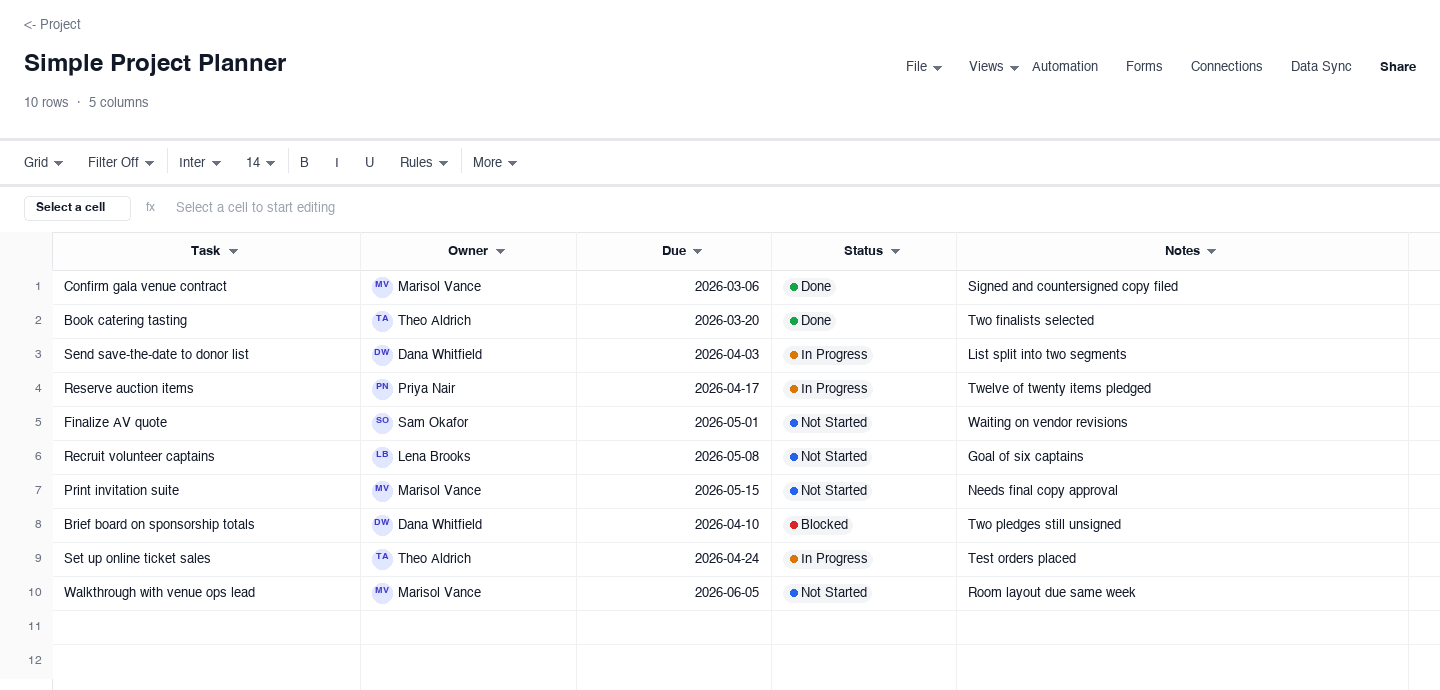
Simple Project Planner
The simple project planner is the version most teams should start with: task, owner, due date, status, and a notes column, with nothing else competing for attention. Use it for a single contained project, an event, a move, a small rollout, where the whole job fits in one shared view. The status column earns its keep only when it is reviewed weekly, because a planner nobody updates is a list of good intentions, not a plan anyone can steer by.
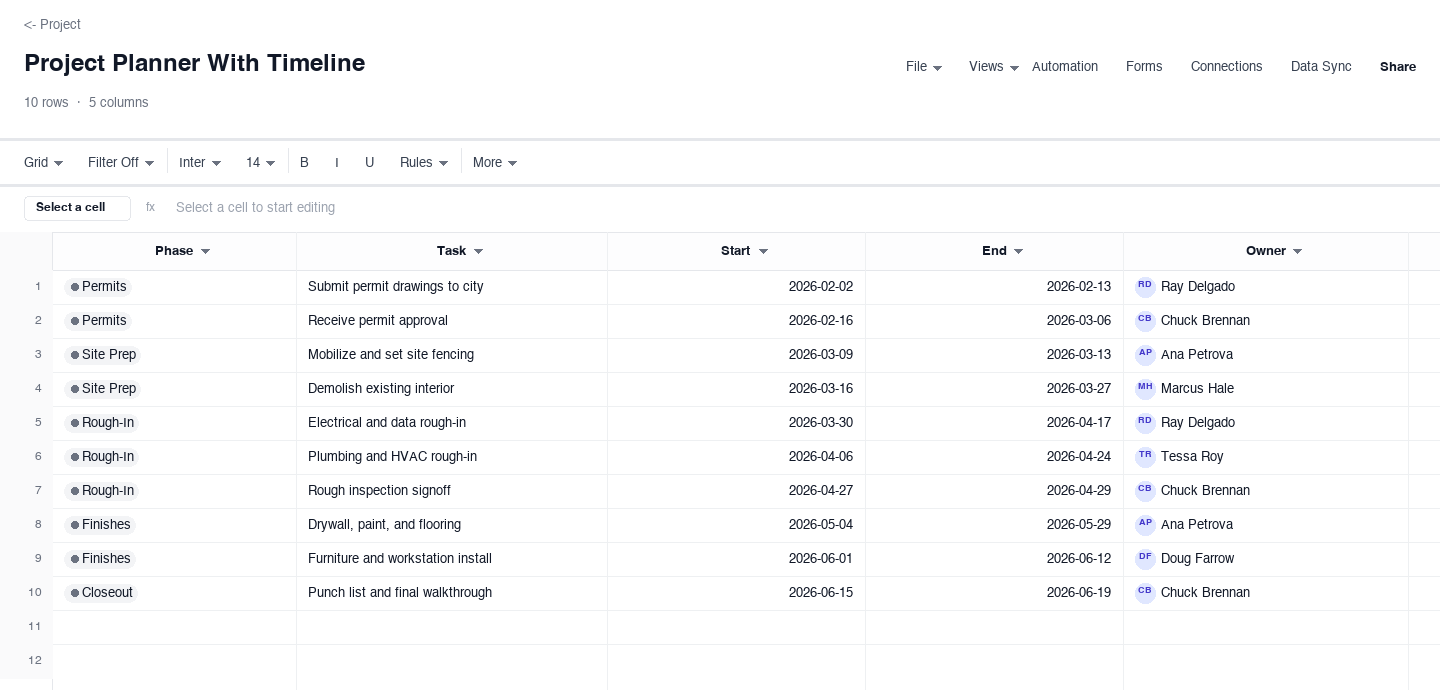
Project Planner With Timeline
The project planner with timeline adds start and end dates and groups every task under a phase, so the plan reads as a sequence rather than a pile. Use it when order matters: permits before demolition, rough-in before finishes, rehearsal before doors. The phase column is the control that pays off, because when the finish date slips you can see which phase is eating the calendar instead of discovering the damage in a status meeting two weeks later.
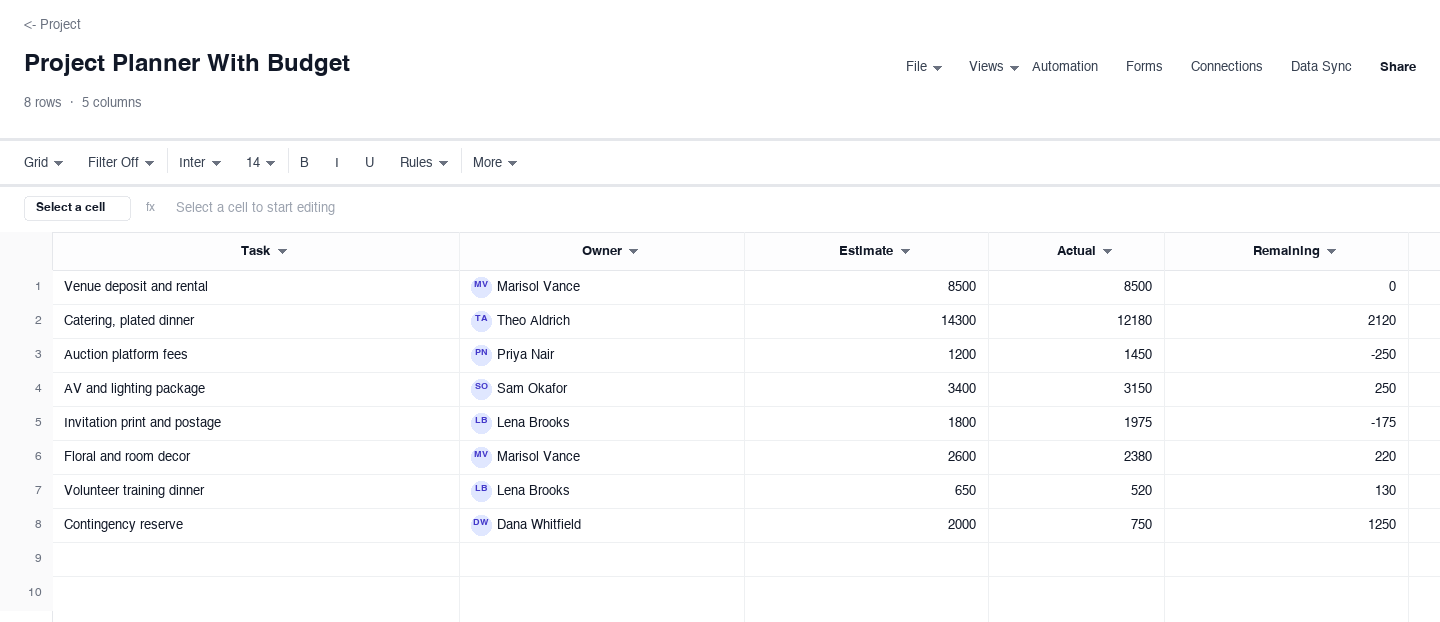
Project Planner With Budget
The project planner with budget puts money next to the work: every task carries an owner, an estimate, actual spend, and the computed remainder. Use it when the plan and the budget are the same conversation, a gala where catering and AV bids land weekly, a build-out where each phase has a cap. The remaining column is the early warning, because it shows which line is drifting while there is still time to renegotiate instead of after the invoice lands.
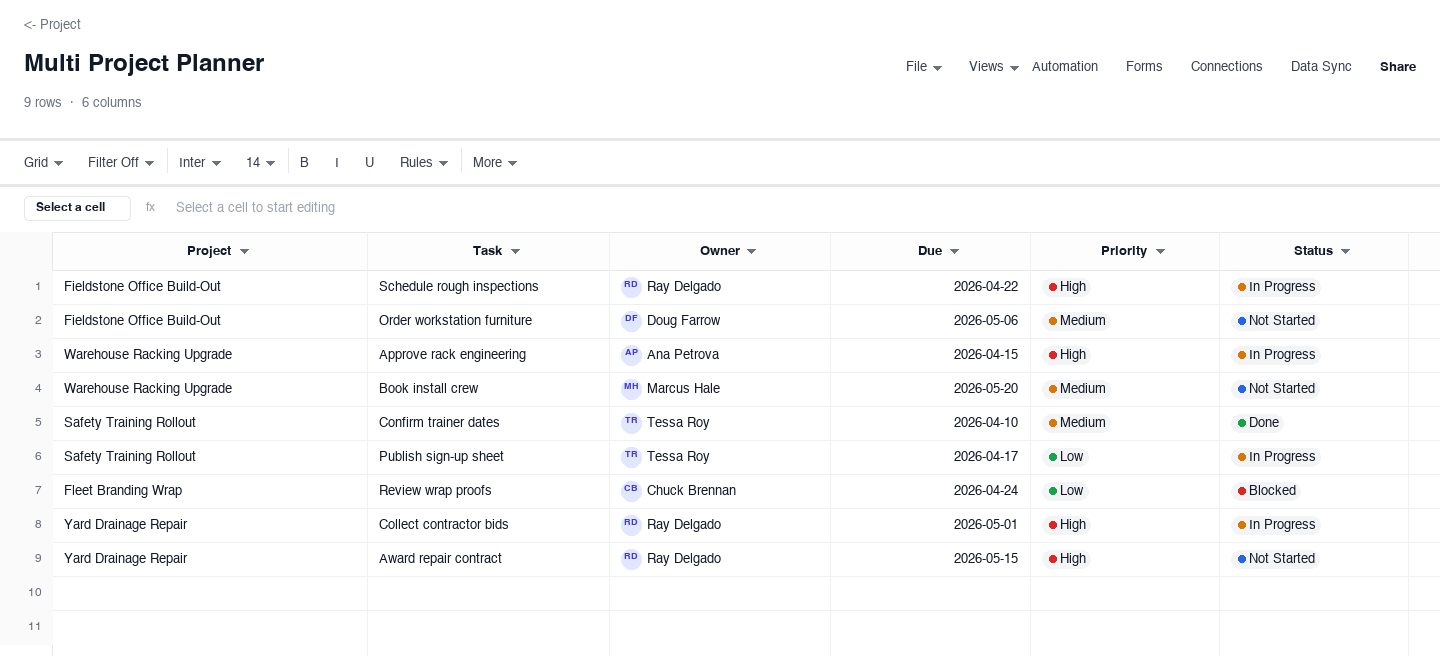
Multi Project Planner
The multi-project planner is for one office or one person holding several projects at once: project, task, owner, due date, priority, and status on every row. Use it when the real question is which project needs attention this week. Sort by priority and the sheet stops being four separate lists and becomes one ranked queue, which is the only honest answer to a stakeholder who asks what is actually being worked on right now, not what was planned in January.
How to set up a project planner people actually update
List every task before you assign a single owner
Start with an unfiltered brain dump of everything the project needs, from the venue contract to the parking validation, and only then group the lines into phases or projects. The mistake at this stage is assigning owners too early, because once a name sits on a row, the row feels finished and people stop adding the awkward tasks nobody owns: the insurance rider, the name badges, the deposit refund policy. A planner that was complete at kickoff is the norm, not a bonus, and it is built by listing before you delegate.
Assign exactly one owner per task
A task with two owners has none, because each person assumes the other is watching it. Write one full name on every row, and when a task genuinely needs two people, split it into two rows with one owner each and a shared due date. The payoff shows up the first time something slips: you can sort the whole sheet by owner in seconds and see who is carrying three deadlines in one week, which is a staffing conversation you want on Tuesday, not the night before the gala or the day the inspection is booked.
Give every task a due date, even a soft one
A task without a date is a wish, and a planner full of wishes tells you nothing when you sort by the Due column. Dates can be honest approximations at first; what matters is that every row has one, so the sheet can be sorted into a real sequence. Watch the dates that move twice in a row, because a task that slips repeatedly is telling you the estimate was wrong or the owner is overloaded, and both are fixable the moment you admit which one it is instead of nudging the date a third time.
Keep the status vocabulary tiny and honest
Four or five status values are enough: not started, in progress, blocked, done. The failure mode is a custom status invented to soften bad news, like nearly there for a task that has not begun, which hides the exact signal the column exists to give. Agree on definitions at kickoff, in one sentence each, and hold the line in the weekly review. A blocked status that people trust enough to use is worth more than any dashboard, because it is the earliest warning a planner can produce.
Review the planner on a standing weekly slot
Fifteen minutes, same time every week, the owners and the sheet. Move the dates that moved, clear the blockers that cleared, and add the tasks that appeared since last week, because new work always appears and a planner that never absorbs it quietly becomes fiction. The review is also where the notes column earns its keep: a one-line note on why a date moved turns the sheet into the project diary, which saves an hour of archaeology when someone asks in October why May looked the way it did.
Put budget lines next to the tasks they belong to
Money trouble in projects is rarely a surprise, it is a task whose cost drifted while nobody connected it to the plan. When you track estimates and actuals beside the tasks, the remaining column turns red while you can still act: renegotiate the AV package, trim the print run, move the contingency. Keep the numbers as raw values so the sheet can total them, and resist moving overruns into a miscellaneous line, because a planner that hides overruns is worse than none.
Searching for project plan templates?
The plural search usually means one of two things: you want a library to pick from, or you are not sure which shape fits your project yet. Both are served by the four versions above, because together they cover the shapes project plans actually take. Pick the simple planner if the whole job fits in one persons head, the timeline version if sequence is the risk, the budget version if money is the risk, and the multi-project version if your real problem is triage across several jobs.
One distinction worth knowing before you download: the project plan is the document that gets approved, scope, dates, budget, owners, and the project planner is the working sheet that tracks the plan after approval. Confusing the two is why so many plans die in a folder. Use your plan document to win the yes, then move daily life into a planner like the ones above, where dates can move without asking permission from a PDF.
What a project management plan template adds
A project management plan template is a bigger animal than a planner. Where the planner tracks tasks, the management plan is the umbrella document that holds the subsidiary plans: scope and deliverables, the schedule baseline, the budget baseline, roles and responsibilities, the risk register, and the communication approach. It answers how this project will be run, not just what is due next Friday.
The practical move is to build the management plan once, at kickoff, and let the planners above carry the living pieces. The timeline planner becomes your schedule baseline, the budget planner becomes the cost baseline, and the multi-project planner becomes the resource view. When a steering committee asks for the management plan, you point at the kickoff document; when they ask how it is going, you point at the sheet, because the sheet is the only version that is still true.
Need a project plan template for Excel?
All four downloads above are .xlsx files, so they open directly in Excel and behave like any workbook you already use: sortable columns, filterable headers, plain formulas. A few habits make the difference between a template and a toy. Freeze the header row so scrolling does not lose the column names, keep statuses as dropdown values via data validation so nobody types in progess next to In Progress, and leave the date columns as real dates so sorting by Due actually sorts by time.
The other Excel question is sharing. Email attachments fork the truth the moment two people edit different copies, so decide early where the master lives. Upload the workbook to a shared drive or import it into a collaborative grid where everyone works the same copy, and treat any exported or printed version as a snapshot with a timestamp, not as the plan itself. A project plan template in Excel works perfectly, as long as exactly one copy is allowed to be right.
Frequently asked questions
What is a project planner template?
A project planner template is a pre-built spreadsheet for tracking the work of a project as it happens: each row is a task with an owner, a due date, a status, and usually notes, so the whole team works from one shared picture instead of separate to-do lists. It differs from a project plan, which is the approved document written at kickoff, in that the planner is updated weekly and reflects reality, while the plan records what was agreed.
What is the difference between a project plan and a project planner?
The project plan is a point-in-time document: scope, dates, budget, and owners, written to win approval and to align everyone at kickoff. The project planner is the living sheet that tracks the work after approval, where dates move when reality disagrees with the estimate. Teams get in trouble when they treat the plan as the tracker, because a document written once cannot show you what slipped this week. Use both: the plan for the yes, the planner for the truth.
What should a project planner template include?
At minimum: a task column written as a concrete outcome, exactly one owner per row, a due date on every task, a small honest status vocabulary, and a notes column for the why behind changes. From there, add columns only when they answer a real question: phases and start dates when sequence is the risk, estimate and actual when money is the risk, a project column when you are juggling more than one job. Every extra column is a tax paid at every weekly review.
Is there a project plan template that works in Excel?
Yes, the four versions on this page download as .xlsx files and open directly in Excel, with sortable columns and real date fields. The habits that make Excel work for a live plan are freezing the header row, keeping status values in a dropdown so spelling stays consistent, and storing the master copy in one shared location rather than emailing attachments around, since forked copies are how plans quietly contradict each other.
How do I keep a project planner up to date?
The single mechanic that works is a standing weekly review: fifteen minutes, same slot, the owners and the sheet, where dates that moved get moved, blockers get named out loud, and new work that appeared during the week gets added. Everything else follows from that habit. Keep the status vocabulary to four or five values so the review is a decision and not a debate, and write a one-line note whenever a date changes, so the sheet keeps its history instead of silently rewriting it.
Can one planner track multiple projects at once?
Yes, and the multi-project version above is built for it: every row carries its project name alongside task, owner, due date, priority, and status, so one grid holds the whole portfolio. The discipline that makes it work is honest priorities. When everything is high priority, the sort that answers which project needs attention this week returns everything, and you are back to gut feel. Limit high priority to what truly slips without consequence for the rest of the portfolio.
Run it live instead of in a file.
The downloads above are yours either way. In Wisegrid the same template becomes a working sheet with owner contacts, status dropdowns, reminders, and dashboards. 7-day free trial, no credit card required.