Campaign Launch Tracker Template: Every Channel of Your 2026 Launch on One Sheet
Two weeks before a launch, the question that matters is never whether the plan exists. It is whether anyone can see, in one place, which channel is behind. A campaign launch tracker is that one place: every task across email, social, paid, content, PR and the website, each with an owner, a due date and a status, sorted by how close its deadline is. The versions below ship pre-filled with a full product launch, so you can watch how the sheet is meant to run before you swap in your own campaign.
The tracker is built for the way launches go wrong in practice. Deadlines do not slip loudly. They slip one asset at a time, quietly, until launch morning turns into a scramble. So the sheet counts down to every due date on its own and flips a flag the day something goes late, which turns the daily check-in from an interrogation into a thirty-second scan for red.
Try the launch tracker live. No signup.
This is an editable sheet, not a picture of one. Retag a channel, flip a status, rewrite a task. Edits stay in your tab and vanish when you leave. When you want a tracker that keeps, one click makes it yours.
| Task | Channel | Asset | Owner | Due date | Flag | Status |
|---|---|---|---|---|---|---|
Sandbox only, edits don't persist. Want to keep your work? Start your 7-day free trial →
Four campaign launch tracker templates, free to download
All four are working sheets exported straight out of Wisegrid, pre-filled with a believable campaign rather than a header row above forty blank lines. They open in Excel or in any spreadsheet app that reads .xlsx, and there is no email gate between you and the file.
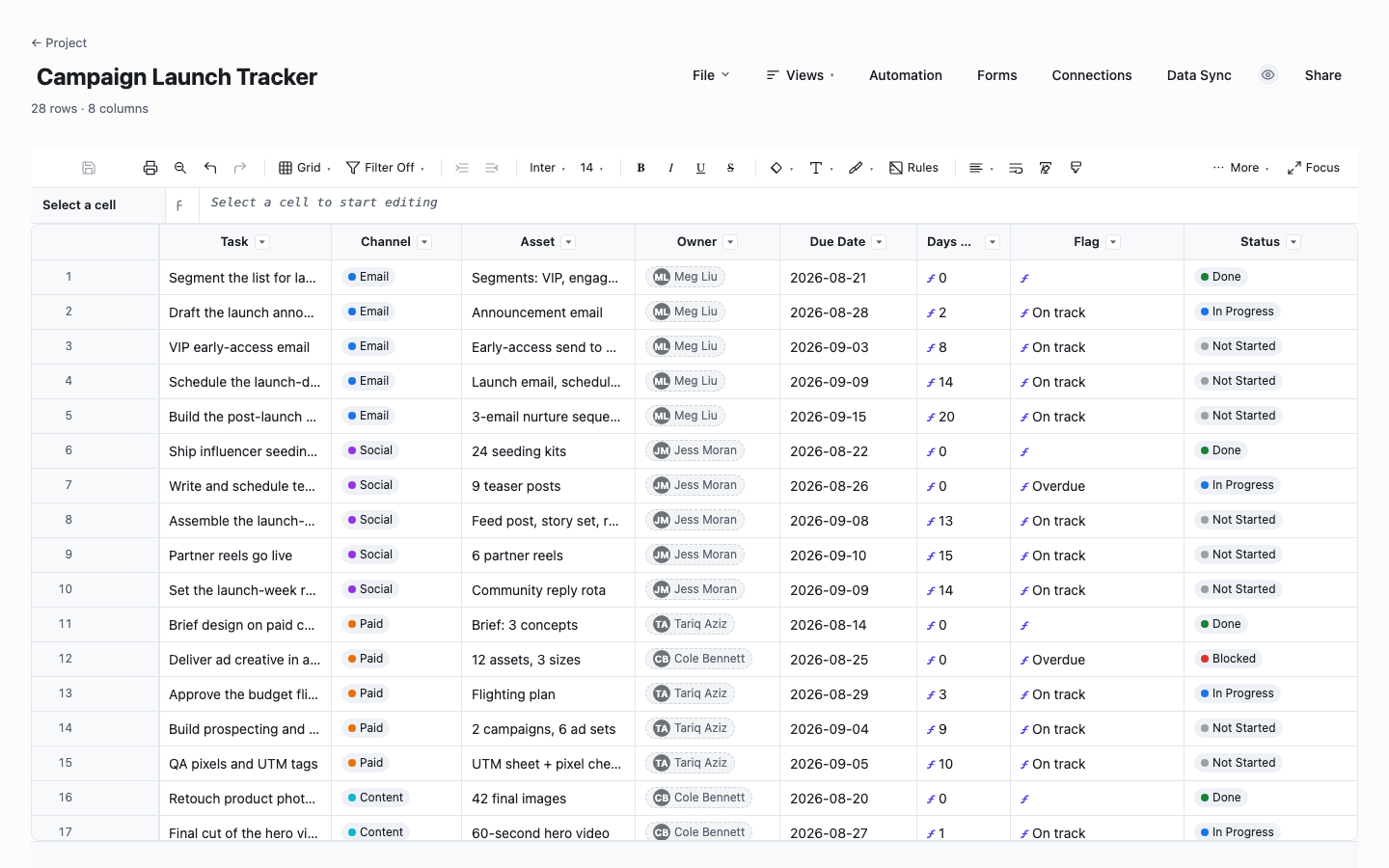
Campaign Launch Tracker
The launch sheet itself, filled with a six-week product launch across seven channels. Each row is one task with the asset it produces, the person on the hook for it, and a due date the sheet does the math on: a Days Out column counts down while a Flag column flips to Overdue the day something slips with its status still unfinished. Sort by Days Out each morning and the day plans itself. This is the version to start from when a real launch date is bearing down on you.
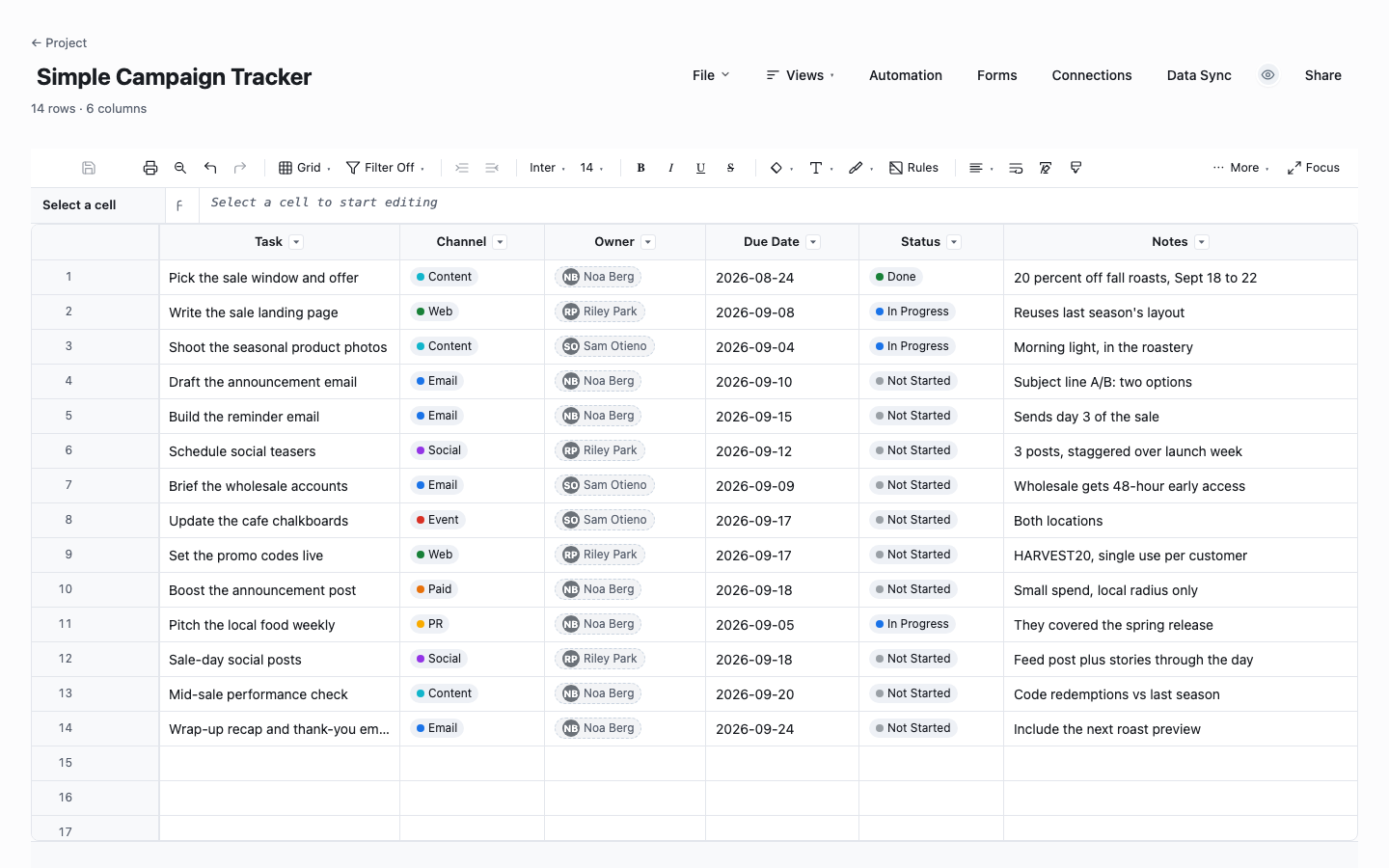
Simple Campaign Tracker
The lightweight one: six columns, no formulas, nothing to maintain beyond typing. It suits a seasonal promotion, a webinar push or any campaign small enough that a countdown column would be more machinery than help. The notes field earns its place here, because on a small campaign the context, like which accounts get 48-hour early access, lives nowhere else. Move up to the full tracker once you catch yourself checking dates against a calendar by hand.
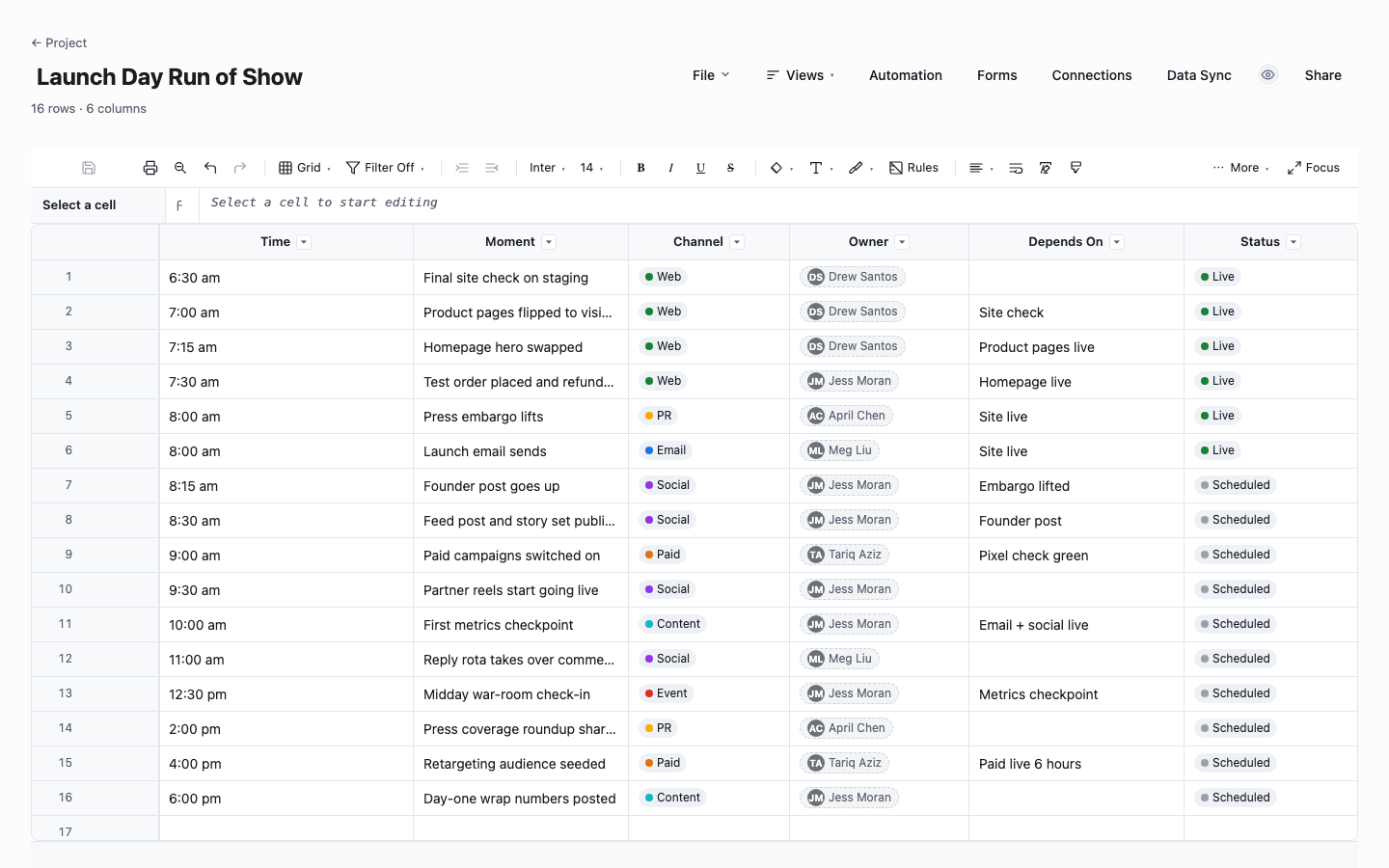
Launch Day Run of Show
Launch day deserves its own sheet, and this is it: the day in time order, from the staging check at 6:30 am to the wrap numbers at 6:00 pm, with a channel, an owner and a depends-on note for each moment. Keep it open on the war-room screen and the team stops asking whether the email went out, because the row says so. Build it the week before, walk it once as a rehearsal, then run the morning from the top.
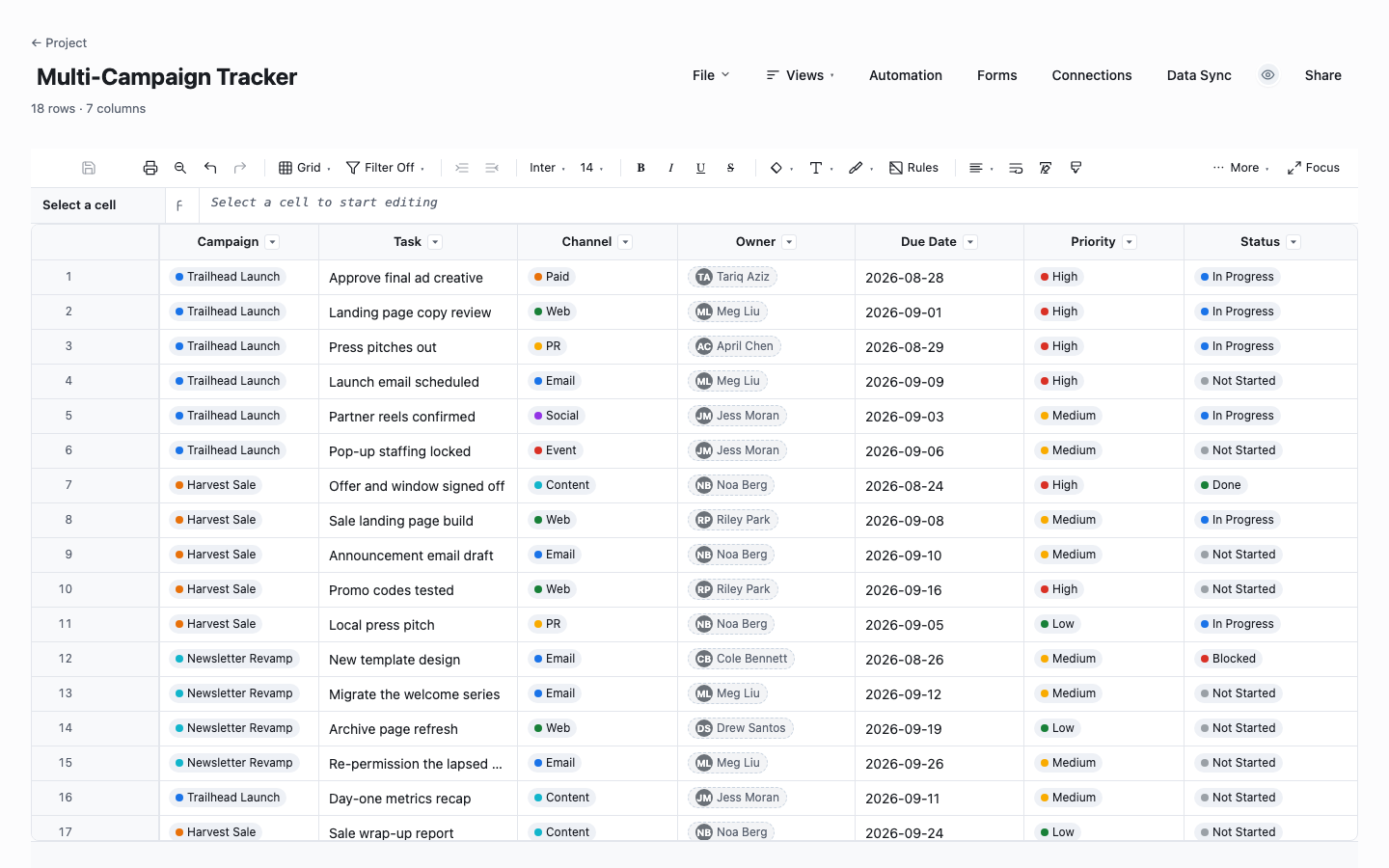
Multi-Campaign Tracker
For the coordinator who is never running just one thing. Every task carries a campaign tag and a priority alongside its channel and owner, so a filter shows a single campaign while a group-by shows the whole workload in the weekly meeting. Use it when your launches overlap and the true list of what you owe this week is spread over three separate documents, which means it exists nowhere.
How to run a launch tracker through the two weeks that matter
Work backward from the launch date
Fix the launch date first, then date every task by counting back from it: creative locked ten days out, the email scheduled the day before, the embargo set for launch morning. Planning backward surfaces the collisions early, like ad campaigns that cannot be built until the creative lands, while there is still time to move something.
Tag every task with a channel, not a team
Channels are how a launch gets judged afterward, so they are how the tracker should filter. When every row carries Email, Social, Paid, Content, PR, Web or Event, the question "is paid ready" takes one click to answer. Department names cannot do that job. One team usually feeds three channels, and the gap you care about hides inside the average.
Name the asset, not just the task
A task called "social ready" can be argued about. A row whose Asset column reads "9 teaser posts" or "60-second hero video" cannot, because the deliverable either exists or it does not. Naming the artifact also keeps scope honest: when the reel becomes three reels, someone has to edit the cell, and that edit is the scope conversation happening on time instead of on launch day.
Give every row one owner, agency work included
Half of launch work sits outside the marketing team, with designers, PR agencies and web developers. Put the specific person in the owner column anyway, external or not, because "with the agency" is where deadlines go to hide. One name per row, and sorting by owner turns the sheet into each person’s punch list ahead of the daily check-in.
Let the flags run the daily check-in
In launch fortnight, open the tracker every morning sorted by Days Out and scan the Flag column for red. Anything overdue gets discussed first, anything due inside two days gets a confidence check, everything else gets skipped. That meeting takes eight minutes when the sheet does the chasing, and a formula accuses no one, which is exactly why the flag works.
Keep the two weeks after launch on the same sheet
A campaign does not end when the site goes live. The nurture flow, the retargeting switch-on, the recap numbers and the press follow-ups belong on the same tracker with dates of their own, or launch week swallows them whole. Teams that track the after-launch tail are the ones whose day-one spike turns into a second week of sales instead of a memory.
The two formulas that keep the countdown honest
The full tracker computes two columns for you. Days Out is the countdown: =IF([Status]@row = "Done", 0, MAX(0, NETDAYS(TODAY(), [Due Date]@row))). You write the formula once and the engine expands @row for every row, reading each task’s own status and due date, so each row shows the days it has left and drops to zero the moment it is marked Done.
Flag is the overdue tripwire: =IF([Status]@row = "Done", "", IF(NETDAYS(TODAY(), [Due Date]@row) < 1, "Overdue", "On track")). A row that passes its due date unfinished flips to Overdue on its own, with no weekly cleanup pass and nobody having to play the person who points it out. Add a conditional-format rule on that column and late rows turn red by themselves.
In the Excel downloads, these columns arrive filled in for the sample rows as computed values, because each spreadsheet app speaks its own formula dialect. Rebuilding them with your app’s IF and date functions is a ten-minute job. Or run the tracker in Wisegrid, where the formula engine evaluates both columns as you type.
Campaign launch tracker or content calendar?
The two sheets get conflated because both carry channels and dates, but they answer different questions. A content calendar is a publishing rhythm: what goes out, where, on which day, repeating forever. A launch tracker is a countdown to a single date, and many of its rows, the pixel QA, the embargo, the checkout test, never publish anything at all.
If you produce content year-round, run both, and keep them separate. The calendar owns the always-on cadence. The tracker owns the six weeks around the launch, including content rows that will also appear on the calendar once they carry a publish date. What fails is forcing one sheet to be both, because the repeating rhythm buries the countdown exactly when the countdown matters most.
When the launch outgrows the spreadsheet
A launch is a coordination problem, and a file is a solo instrument. The moment the designer, the agency and the web developer each hold their own copy, the tracker stops being the truth and becomes three opinions with the same filename. Attachment round-trips make it worse, since every "latest version" email mints another fork.
The other wall is that a file cannot nudge anyone. An overdue flag in a closed workbook helps nobody: the PR contact never learns the embargo moved, and no email goes out when the creative slips. In Wisegrid the same tracker becomes one live shared sheet, dropdowns and owner contacts intact, with reminders on due dates and a launch-day view you can put on a screen. Import the .xlsx you just downloaded and the columns come with you.
Frequently asked questions
What should a campaign launch tracker include?
Seven columns cover a launch: the task, its channel, the asset it produces, one owner, a due date, a status and a flag for overdue work. The channel column is the one people skip and the one that matters most, since launches get reviewed channel by channel. Add a priority column only once the sheet covers more than one campaign at a time.
How far ahead of a launch should the tracker start?
Six weeks covers most product and campaign launches: enough room for creative production, which is nearly always the longest chain, without planning so far out that the dates are fiction. Build the row list in one sitting by working backward from launch day, then spend the final two weeks in daily contact with the sheet. A smaller promotion can compress the same shape into three weeks.
Which channels belong on a launch campaign tracker?
The downloads ship with seven: email, social, paid, content, PR, web and event. Few launches use every one, and the right set is whatever you will be asked about afterward. Delete the channels you are not running rather than leaving hopeful empty rows, and add owned channels the list misses, like SMS or a partner newsletter, by editing the dropdown.
How do I make Excel flag overdue campaign tasks?
Add a formula column that compares each due date with today and checks the status, so a row reads Overdue only while the date has passed and the work is unfinished. Then point conditional formatting at that column to color the row. The download ships the sample rows with these columns filled in, and the formula section above walks through both as they run in Wisegrid.
What is the difference between a campaign tracker and a marketing calendar?
A marketing calendar answers "what goes out this week" across everything you publish, indefinitely. A campaign tracker answers "will this launch be ready" and retires a couple of weeks after the date it counts down to. The failure pattern is merging them, because always-on publishing rows drown out the twenty tasks that decide whether launch day works.
Can one tracker handle several campaigns at once?
Yes, and the multi-campaign download is set up for it: a campaign tag on every row plus a priority column, so filtering shows one campaign and grouping shows your whole slate. That works to about a handful of concurrent campaigns. Past that point, give each big launch its own sheet and keep the shared tracker for always-on work, or move to a tool that can roll several sheets into one view.
Run it live instead of in a file.
The downloads above are yours either way. In Wisegrid the same template becomes a working sheet with owner contacts, status dropdowns, reminders, and dashboards. 7-day free trial, no credit card required.