Project Tracker Excel Template: The Best Way to Track a Project in 2026
A project tracker is the single sheet that answers the questions every status meeting starts with: what is moving, what is stuck, and who owns it. One row per piece of work, with an owner, a status, dates, and a percent complete. A good project tracker excel template ships that structure pre-built, with working formulas for overdue flags and completion rollups, so you start from a functioning file instead of a blank grid and an hour of formatting.
A tracker earns its keep by being current, not comprehensive. It is deliberately lighter than a full project plan: no dependency chains, no resource leveling, just the live state of the work that matters this week. That lightness is why the humble spreadsheet tracker has outlived every generation of project software, and why the honest question is not whether Excel can track a project but when your project outgrows it. This page answers both.
Project tracker Excel templates, free to download
Every version below is a working spreadsheet with realistic example rows and live formulas, not a blank grid with a title row. Each download works in the spreadsheet software you already have open, whether that is Excel, Sheets, or anything else. No email address required.
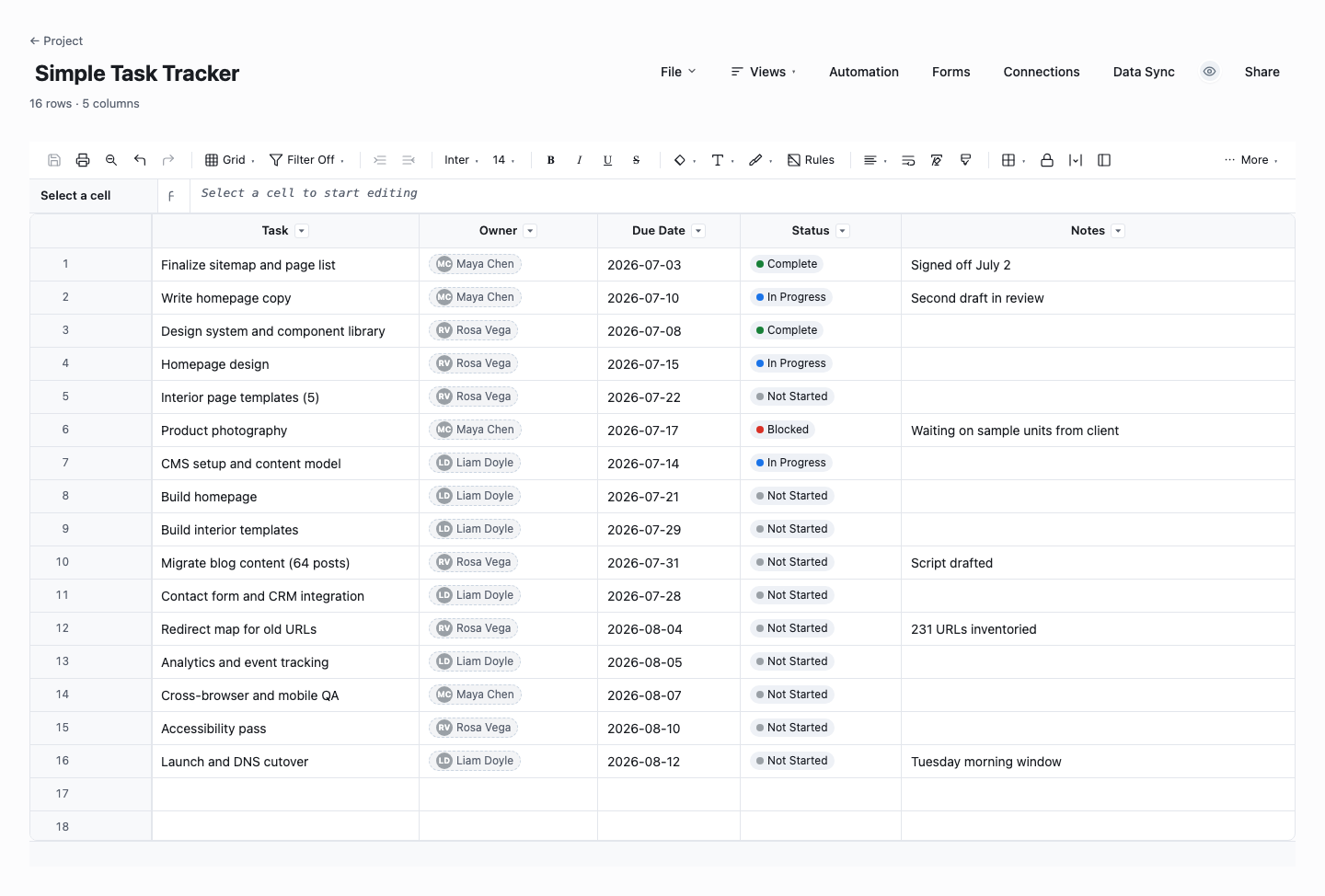
Simple Task Tracker
The simple task tracker is the version most projects should start with: tasks, owners, due dates, a status dropdown, and a notes column, with nothing to configure and nothing to maintain. Use it when the project fits on one screen and the whole job of the tracker is making sure nothing silently drops. Its plainness is the feature. A tracker the team actually updates beats a clever one they abandon by week three.
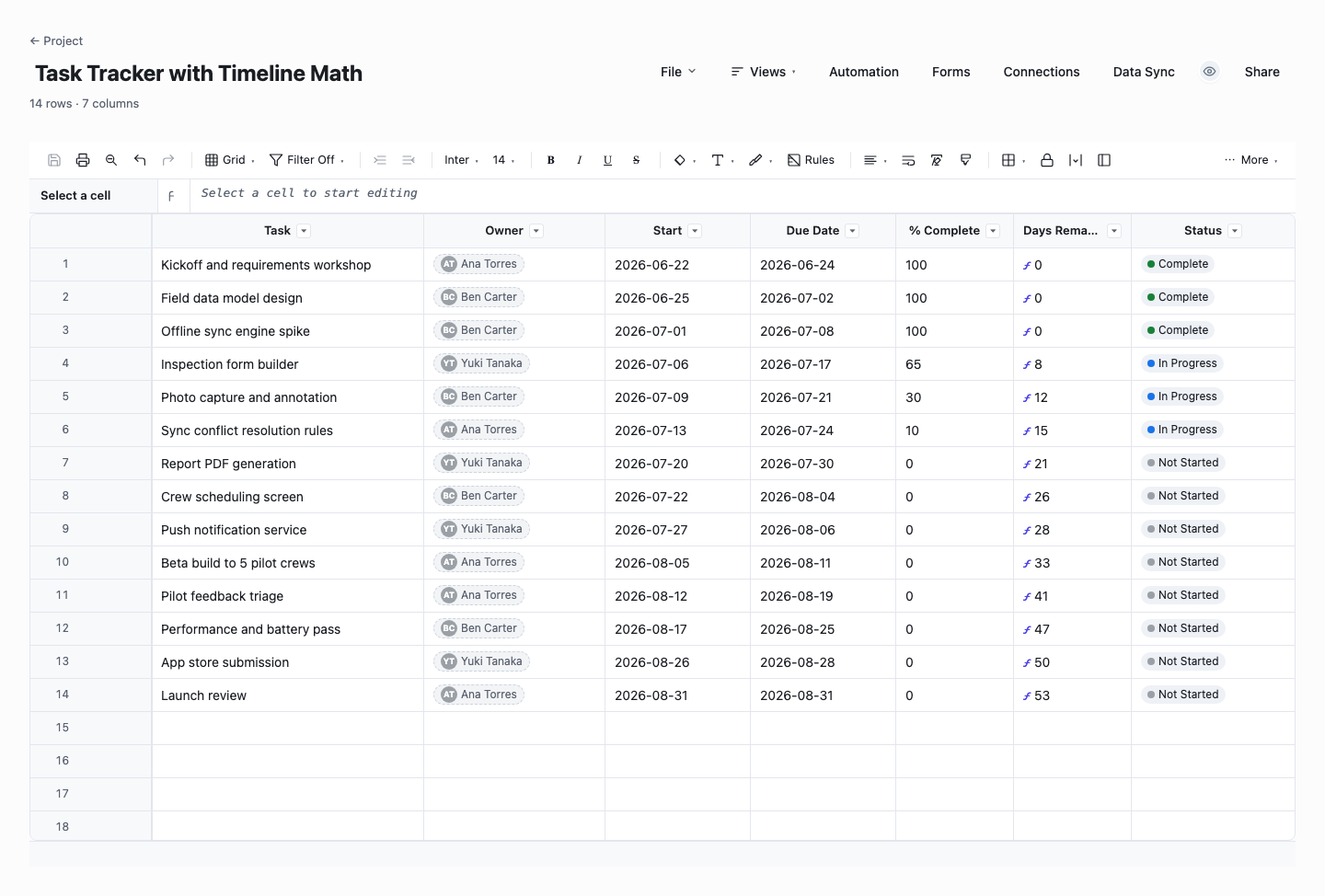
Task Tracker with Timeline Math
The timeline version does the date math for you: each task carries a start date, a due date, a percent complete, and a Days Remaining column that is a live formula off the due date, so slipping work surfaces itself instead of hiding in a column of dates you stopped reading. Use it when the project is long enough that "when is this actually due" needs an answer at a glance, or when you report progress upward and need percent complete on hand.
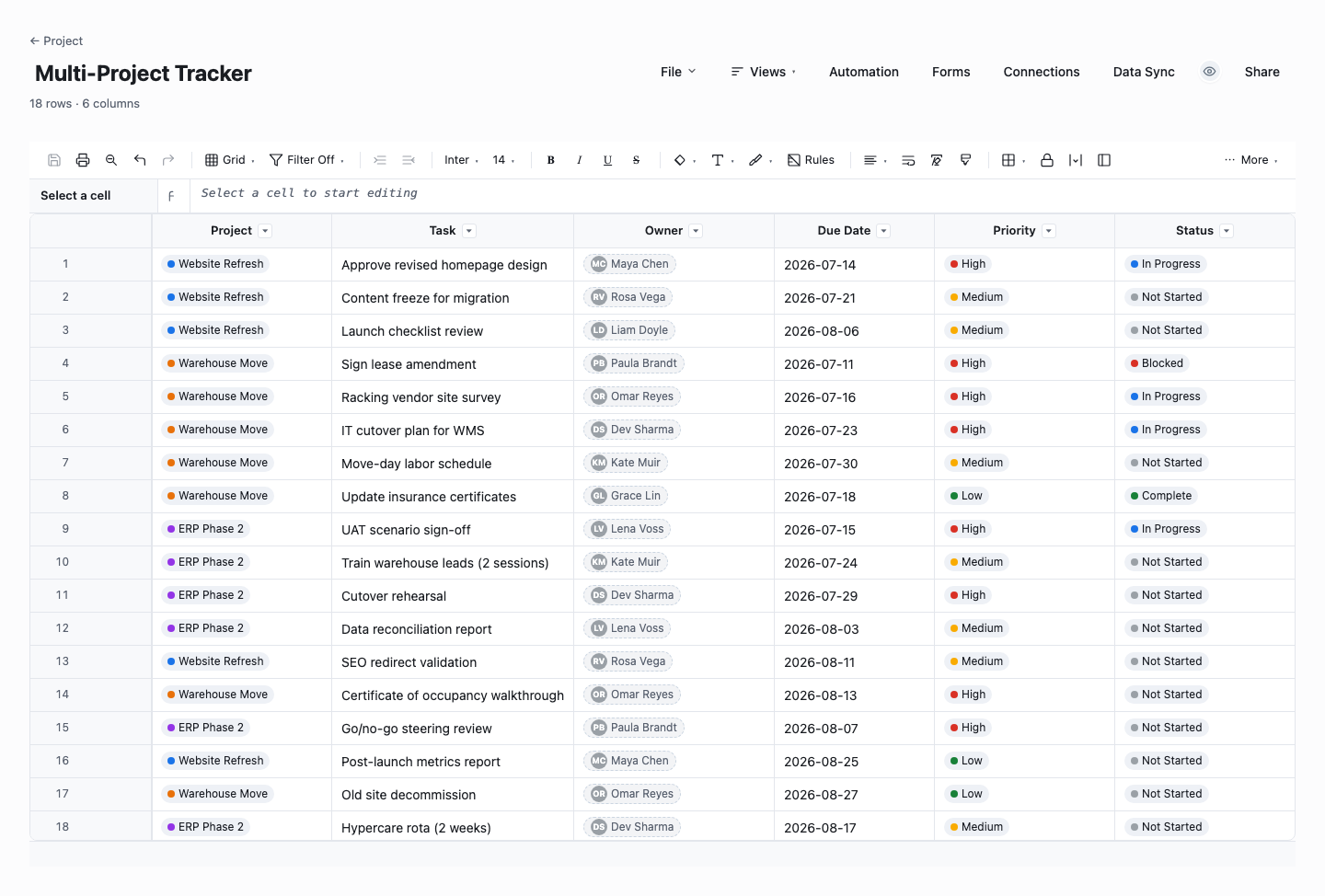
Multi-Project Tracker
The multi-project tracker runs several projects from one sheet: every task is tagged to its project and carries a priority, so you can filter to one project for the working session and group by project for the weekly review. Use it when you are one person or one small team carrying a portfolio of small projects, where separate files per project means the true picture of your commitments exists nowhere at all.
How to run a project tracker that stays current
Pick the columns that force decisions
A tracker needs task, owner, status, due date, and percent complete. Most trackers also earn a priority and a notes column. The test for any further column is whether someone will change a decision based on it this month. Every column you add is a field someone must keep current, and stale columns teach the team to distrust the whole sheet.
Make status a fixed list, not free text
Restrict the status column to a short dropdown: Not started, On track, At risk, Off track, Done. Free-text status rots instantly into "waiting on Dave (see email)". A fixed list keeps the column filterable and countable, which is what lets a summary row report how much of the project is in trouble. The templates above ship the dropdown pre-configured with data validation.
Give every row exactly one owner
A task owned by two people is owned by neither, and a task owned by a team is a rumor. Put one name in the owner column even when several people do the work. The owner is simply whoever will be asked about it in the meeting. Sorting the sheet by owner should produce each person’s working agenda, which is the fastest sanity check that ownership is real.
Put a date on everything and let formulas flag the slips
Rows without due dates cannot slip, which is exactly why people leave them blank. Date every row, even roughly, and let the sheet do the policing: the templates above compute an overdue flag from the due date and status, so late work turns visible without anyone having to accuse anyone. Renegotiating a date openly is fine. What sinks projects is the unwritten date nobody admits slipped.
Update it on a rhythm the team already has
Trackers do not die from bad design. They die of neglect. Attach the update to an existing habit: ten minutes before the weekly status meeting, or at standup on a fixed day. The tracker should be the meeting agenda, walked top to bottom by filter (overdue first, then at risk), so keeping it current is the same act as preparing for the meeting.
Archive finished work monthly, never delete it
Move Done rows to an archive tab at the end of each month. The working view stays short enough to read in one screen, and the archive quietly becomes your delivery record: what shipped, when, and who did it. That history is what you will want at the retrospective, the performance review, and the "what did we actually do in Q2" conversation.
Review in the meeting, not after it
Open the tracker on the shared screen and edit it live as the meeting talks: change the status, move the date, reassign the owner. Minutes written after the fact describe a meeting. A tracker edited during it is the decision record itself. This one habit removes the follow-up email, the transcription lag, and most of the arguments about what was agreed.
The three formulas that make a tracker maintain itself
A tracker becomes self-maintaining with three pieces of spreadsheet math, all included in the downloads above. First, the overdue flag: a formula that marks any row whose due date is in the past while the status is not Done, paired with conditional formatting so the row turns red on its own. Second, the status rollup: COUNTIF formulas that total how many rows sit in each status, which turns the top of the sheet into a one-line health report (four at risk, two off track) that nobody has to compile by hand.
Third, the weighted percent complete: instead of averaging every row equally, weight each task by its size so one giant unfinished task cannot hide behind nine small done ones. None of this requires macros or add-ins, just plain formula work that survives in Excel, Google Sheets, and any app that reads .xlsx. The example rows in each download show the formulas filled in, so the fastest way to learn them is to click the cells and read.
When your project tracker outgrows Excel
The failure mode is never the spreadsheet math. It is sharing. The moment two people edit the tracker, you get the version fork: tracker_v3_FINAL next to tracker_v3_FINAL_realones, each edited by someone who believed theirs was current. Email attachments make it worse, because every send mints another divergent copy of the truth.
The second breaking point is that a file cannot act. Excel will compute an overdue flag, but it will not tell the owner. Nobody gets nudged when a due date passes, a status change notifies no one, and so the meeting spends its first twenty minutes reconstructing reality instead of deciding things. A tracker that must be interrogated is a report, not a tool.
When you hit either wall, you do not have to rebuild. Wisegrid imports the same .xlsx in minutes, formulas included, and the tracker becomes a live sheet: one shared copy, status dropdowns, owner contacts, and reminders that chase the due dates so you do not have to. The download above is deliberately built so that the file you use today is the sheet you import tomorrow.
Frequently asked questions
What columns should a project tracker include?
Start with six: task name, owner, status, due date, percent complete, and notes. Add priority if the list regularly exceeds what the team can do, and a phase or workstream column once the project has distinct stages worth filtering by. Resist the urge to add more at the start. Every column is a maintenance promise, and a six-column tracker that is current beats a sixteen-column one that was accurate in March.
What is the difference between a project tracker and a project plan?
The plan is the map; the tracker is the dashboard. A project plan lays out the full scope, sequence, dependencies, and resourcing, and it changes slowly through deliberate re-planning. The tracker holds the live status of current work and changes daily. Small projects can merge the two into one sheet, but keep the roles straight: when a tracker tries to also be the plan, it grows columns and rows until nobody updates it.
How often should a project tracker be updated?
Whenever the state of the work changes, and at minimum on a fixed weekly rhythm tied to the status meeting. The practical standard is that the tracker is never more than a week stale, and owners update their own rows rather than routing everything through the project manager. If updates keep not happening, shrink the sheet: an unmaintained column is a signal the tracker is asking for more than the team will give.
Can I track multiple projects in one spreadsheet?
Yes, and for a small portfolio it is the right call: add a project column, keep every row in one sheet, and filter or pivot by project for the per-project view. The approach strains when projects have different owners who each want their own working view, or when one sheet grows past a few hundred live rows. At that point separate sheets with a rollup summary, or a tool built for cross-project views, gets the job done with less fighting.
How do I make Excel flag overdue tasks automatically?
Use a formula column that compares the due date to today and checks the status, for example flagging any row where the due date has passed and the status is not Done, then bind conditional formatting to that flag so the row turns red on its own. The templates above ship this wired up. The one thing no spreadsheet will do is tell the owner: the red cell waits for someone to open the file, which is fine weekly and dangerous daily.
Is Excel good enough for project tracking?
Yes, for one careful editor and a project the team reviews weekly. Excel is free of ceremony, everyone can read it, and the templates above make it more capable than people expect. It stops being enough when several people need to edit at once, when you want reminders and notifications instead of a file someone must remember to open, or when leadership wants a live rollup across projects. Those are sharing and automation problems, not spreadsheet problems, and they are the point at which importing the same file into a live sheet pays for the switch.
Is this project tracker template free to download?
Yes. All three versions download as .xlsx files with no email gate, no signup, and no watermark: a simple five-column tracker, a timeline version with percent complete and days remaining, and a multi-project version with a priority column. Each ships pre-filled with example rows so you can see how it is meant to run before you clear it for your own work.
What status options should a project tracker use?
Four cover most projects: Not Started, In Progress, Blocked, and Done. Blocked is the one teams skip and the one that earns its place, because it separates "late because nobody started" from "late because something is in the way", and those need different conversations. Add more states only when a real handoff exists, like In Review, and resist synonyms: two people should never debate which of five near-identical statuses a row deserves.
Run it live instead of in a file.
The downloads above are yours either way. In Wisegrid the same template becomes a working sheet with owner contacts, status dropdowns, reminders, and dashboards. 7-day free trial, no credit card required.