By Ryan Kramer, founder of Wisegrid. Last updated June 2026.
The hardest part of leaving Smartsheet isn’t deciding to leave — it’s the fear that the move will quietly break something. Lost formulas, dropped attachments, flattened column types, a hierarchy that comes out as a flat list. That fear is rational, because Smartsheet’s own export loses a lot of that data. This guide shows you the manual path (so you know what you’re avoiding) and the one-click path with Wisegrid’s importer (so you don’t have to).
Key takeaways – Manual export is lossy by design: Smartsheet’s export drops formulas to values, excludes attachments/groupings/summary rows, flattens special column types to text, and turns Gantt into a flat task list. – One thing it keeps: comments (on separate tabs) — don’t believe guides that claim otherwise. – The importer path: paste a read-only token, and Wisegrid mirrors sheets, rows, columns, formulas (translated), attachments, hierarchy, and cross-sheet references. – Nothing changes silently: anything the formula translator can’t convert lands in a visible review queue. – Not imported yet: Reports, Dashboards, Forms, Automations — surfaced with “notify me,” never dropped without warning.
Why manual migration is risky
The manual route is: export each sheet to Excel or Google Sheets, then re-import elsewhere. The problem is that a Smartsheet export is lossy by design, so you spend days rebuilding the parts that didn’t survive — and you can’t always tell what silently changed.
What Smartsheet’s own export drops
Per Smartsheet’s own documentation, exporting a sheet to Excel/Google Sheets:
- Doesn’t preserve formulas — “Formulas aren’t preserved due to the differences between Excel and Smartsheet formula syntax.” You get computed values, not the formulas behind them.
- Excludes attachments, groupings, and summary rows — “The following items are excluded from exports: Groupings, Summary rows, Attachments.”
- Flattens special column types to plain text — dropdowns, contact lists, checkboxes, and symbol (RYG) columns export as text only.
- Turns Gantt into a flat list — “Exporting a Gantt chart to Excel exports only the task list it’s based on.”
One thing the export does keep: comments and sheet summaries land on separate tabs, so don’t believe any guide that tells you Smartsheet drops comments on export — it doesn’t. But losing your formulas, files, column types, and Gantt is more than enough to make a manual move painful. For the full inventory of what survives versus what’s lost, see What Smartsheet’s export actually loses.
The fast path: Wisegrid’s Smartsheet importer
Wisegrid’s importer exists precisely to avoid that loss. Instead of exporting lossy files and rebuilding, you connect Smartsheet directly with a read-only API token, and Wisegrid mirrors your workspace — translating formulas instead of dropping them, carrying over attachments, hierarchy, and cross-sheet references instead of flattening them.
The core promise: nothing changes silently. Anything the importer can’t translate is surfaced in a review queue, so you always know what needs a human look.
And the workspace it mirrors into has more headroom than the one you’re leaving: 1,000,000 cells per sheet — more than 2× Smartsheet’s 500K — at the same $9 Pro / $19 Business pricing. You’re not just escaping a lossy export; you’re landing on a bigger grid for the same money.
Step-by-step migration
1. Sign up for Wisegrid
Create an account (Google sign-in or email/password). You can start on the free tier to test a migration before committing.
2. Get a Smartsheet API token
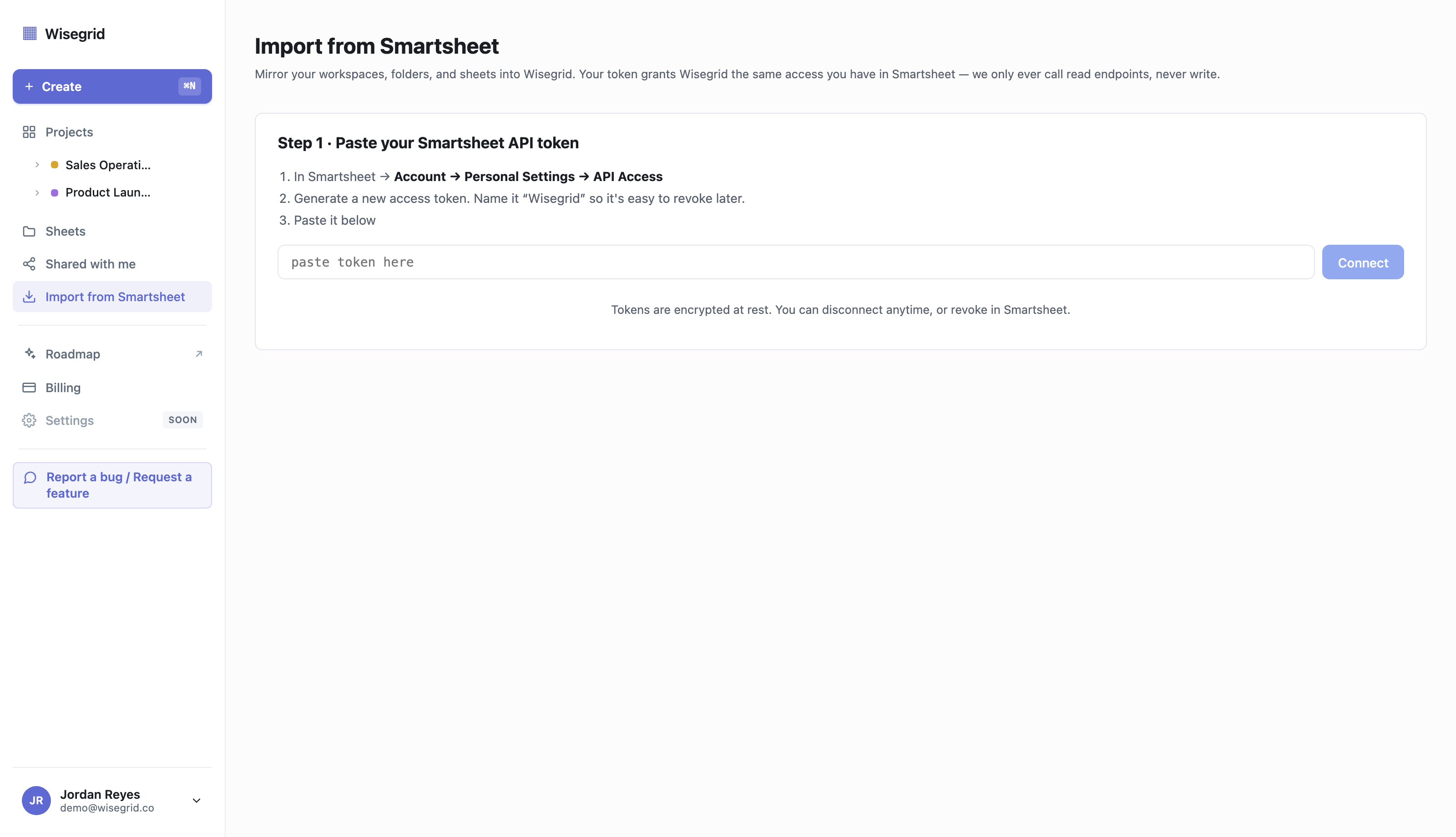
In Smartsheet, generate a personal API access token from your account settings. Wisegrid uses it read-only — it discovers and copies your data; it doesn’t modify your Smartsheet. The token is stored encrypted.
3. Paste the token into the importer
In Wisegrid, open Import from Smartsheet and paste the token. Wisegrid validates it and then discovers your full landscape — workspaces, folders, and sheets — and presents them as a checkbox tree with row counts and storage estimates.
4. Pick what to migrate
Check the workspaces, folders, and sheets you want. Reports, Dashboards, Forms, and Automations appear in the tree but are shown as not-yet-importable, with a “Notify me when ready” option so you’re never guessing what’s pending.
5. Confirm capacity
Before the job starts, Wisegrid shows a summary — “X workspaces, Y sheets, Z rows, W attachments — uses about A GB of your N GB storage” — and checks whether the attachments fit your tier. If they’d overflow, you’re prompted to upgrade or deselect oversized sheets, before anything runs (so a migration never half-fails on storage).
6. Run the migration
A background worker imports in two passes: first it creates all your sheets, then it resolves cross-sheet references once every sheet exists (this handles references that point at each other, which a naive one-pass import can’t). Per-sheet progress streams to the screen.
7. Review the completion report
When it finishes you get a report like “✓ 14 sheets, 4,863 rows imported. 8 items need manual review.” Click through to the review queue to see each formula the translator couldn’t auto-convert, with the original Smartsheet syntax, a best-guess Wisegrid translation, and an edit field. You fix the handful that need it — and you can see exactly which ones, instead of trusting that everything came over clean.
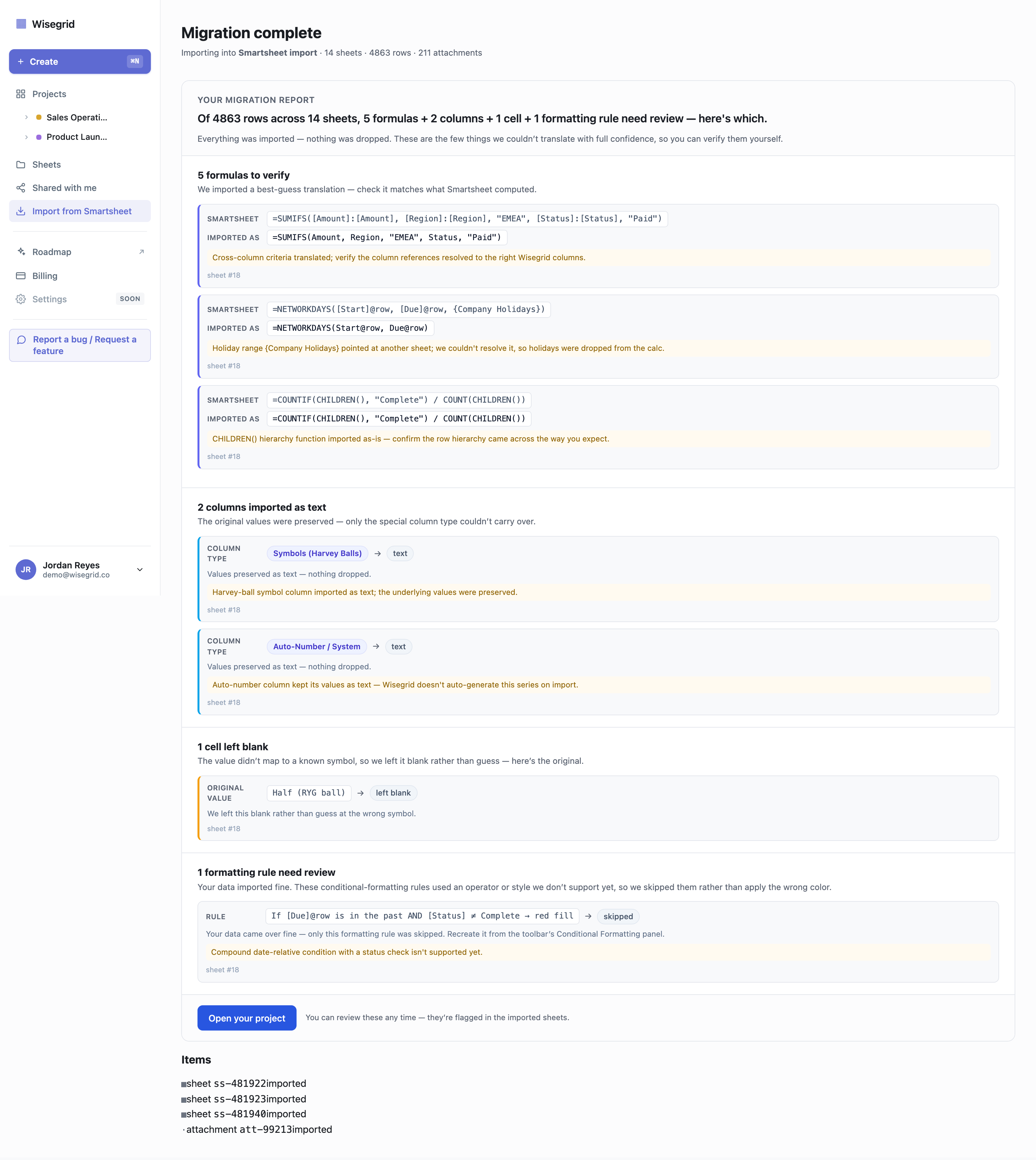
Here’s what that looked like on a test migration we ran end-to-end through the importer: 4,863 rows across 14 sheets mirrored over with attachments preserved, and the translator auto-converted everything except 5 formulas, 2 columns, and 1 cell — eight items total — which it surfaced in the review queue with the original syntax and a suggested translation. That’s the whole point: instead of trusting that thousands of cells came over clean, you get a short, explicit list of what needs a second look.
What gets imported (and what doesn’t, yet)
| Imported today | Not imported yet (waitlisted in the tree) |
|---|---|
| Workspaces → Projects | Reports |
| Folders → Folders | Dashboards |
| Sheets (rows, columns, cells) | Forms |
| Formulas (translated to Wisegrid syntax) | Automations / workflows |
| Attachments | Comments / discussions |
| Row hierarchies | |
| Cross-sheet references (translated) |
The not-yet-imported items aren’t dropped silently — they’re shown in the discovery tree with a “notify me” capture so you know what’s still on Smartsheet and get told when it’s supported.
How formulas are handled
This is the part that makes or breaks a migration. Smartsheet’s formula syntax differs from standard spreadsheet syntax — column references like [Column Name]@row, cross-sheet references as {Reference Name} objects. Wisegrid’s importer:
- Parses the Smartsheet formula into a structured form.
- Translates it to Wisegrid syntax. Same-row column references stay the same
[Column]@rowsame-row syntax as Smartsheet — nothing to relearn, and the importer brings it across unchanged. Cross-sheet references become Wisegrid’s inline form: you type[Sheet]!A1inline (autocomplete as you type[), with no reference-picker modal and no 100-cross-reference-per-sheet cap. - Surfaces failures — anything it can’t translate goes to the manual review queue with the original and a suggested translation, rather than producing a silently wrong value.
That last point is the difference from a lossy export: instead of formulas becoming static values you have to rebuild blind, you get a short, explicit list of the few that need attention. If you want to see how specific Smartsheet functions map across before you migrate, the Smartsheet formula translation guide walks through the common ones (and the handful, like LET/LAMBDA, that aren’t supported yet).
Migration checklist
- Created a Wisegrid account
- Generated a read-only Smartsheet API token
- Pasted the token and reviewed the discovered landscape
- Selected the workspaces/sheets to migrate
- Confirmed attachments fit your storage tier
- Ran the migration and watched per-sheet progress
- Reviewed the completion report and cleared the formula review queue
- Spot-checked a few key sheets against the originals
- Noted which items (Reports/Dashboards/Forms/Automations) are still on Smartsheet via the waitlist
FAQ
Will I lose my formulas migrating from Smartsheet?
Not with the importer — it translates them and shows you any it couldn’t convert in a review queue. (By contrast, Smartsheet’s own export to Excel drops formulas to values-only — see what Smartsheet’s export actually loses.)
Does the importer change my Smartsheet data?
No. It uses a read-only API token to copy your data into Wisegrid. Your original Smartsheet stays untouched, so you can migrate without burning any bridges.
How long does migration take?
Most workspaces mirror in minutes; very large ones with many attachments take longer. Progress streams per sheet, and the job is built to resume cleanly if interrupted.
What about Reports, Dashboards, Forms, and Automations?
These aren’t imported yet. They show up in the discovery tree with a “notify me” option. Wisegrid has shipped its own Forms, Gantt, and Automations — you’d rebuild those natively (and tell us to prioritize the importer support via the waitlist).
Can I try a migration before paying?
Yes — start on the free tier, run a migration, and see your actual sheets before deciding.
Migrate in minutes, not days
Paste a Smartsheet token and watch your workspace mirror over — formulas translated, attachments and hierarchy intact, at the same price you already pay.
Start your migration → · Start free → · Wisegrid vs Smartsheet →
About the author Ryan Kramer is the founder of Wisegrid, a higher-capacity Smartsheet alternative built around a 1,000,000-cell-per-sheet grid, conflict-safe collaboration, and a one-click Smartsheet importer. He built Wisegrid out of first-hand experience hitting the walls in Smartsheet’s grid, pricing model, and capacity limits, and writes about leaving Smartsheet without losing your data. More from Ryan →