By Ryan Kramer, founder of Wisegrid. Last updated June 2026.
If you’re leaving Smartsheet and you don’t want to lose half your sheet on the way out, the answer is a lossless direct import — Wisegrid reads Smartsheet through its own API and keeps your formulas, attachments, and hierarchy. The thing most people reach for instead — File → Export → Excel — feels safe but isn’t lossless, and the gap between “I exported my sheet” and “I have my sheet” is where migrations quietly go wrong.
The short version: a Smartsheet export gives you your data as it looked at that moment, not your sheet as a working system. Formulas come out as frozen numbers. Attachments don’t come at all. Your dropdowns, RYG balls, and assignee columns flatten into plain text. Your Gantt chart becomes a list. One thing it does keep — and that most guides get wrong — is your comments.
This article walks the full inventory, sourced from Smartsheet’s own export documentation, and uses it as the proof: every loss below is exactly what importing directly into Wisegrid is built to avoid — so “export to a dead Excel file” isn’t your only way out.
Key takeaways – Formulas don’t survive export. You get the computed values, not the formulas — so the sheet stops recalculating. – Attachments, groupings, and summary rows are excluded from the export entirely. – Special column types flatten to text: dropdowns, contact/assignee lists, checkboxes, and symbol (RYG) columns all export as plain text. – Gantt charts export as a flat task list — the timeline structure is gone. – Comments DO export — to separate tabs in the Excel/Google Sheets file. Don’t believe guides that claim otherwise; it’s a common, repeated error. – A direct import avoids the loss. Wisegrid’s importer carries over formulas (translated), attachments, hierarchy, and cross-sheet references — not a flattened snapshot. (It does not migrate comments — see the honest note below.)
Why export feels safe but isn’t
Export is the one button everyone trusts. It’s the move you make before a big change, the thing you tell your boss you did so “we have a backup.” The problem is that Excel and Smartsheet are not the same kind of thing. Excel doesn’t have Smartsheet’s column types, its attachment model, its parent/child row hierarchy, or its formula syntax — so when Smartsheet writes your sheet into an .xlsx, it has to drop or downgrade everything Excel can’t represent.
Smartsheet is upfront about this. Their export documentation states plainly: “The exported data may not appear in Excel exactly as it does in Smartsheet.” (Smartsheet export docs, help.smartsheet.com/articles/770623) That one sentence is doing a lot of work. Below is what “may not appear exactly” actually means.
What a Smartsheet export actually keeps vs. loses
Here’s the complete picture for an Excel / Google Sheets export, with each item tied to Smartsheet’s own documentation, and what a direct Wisegrid import does with the same thing. Every loss below is solved by importing directly instead of exporting — read the right-hand column as the proof.
| Your Smartsheet data | Native export to Excel/Sheets | Wisegrid importer |
|---|---|---|
| Formulas | ❌ Lost — exported as computed values only. “Formulas aren’t preserved due to the differences between Excel and Smartsheet formula syntax.” | ✅ Translated to standard syntax; anything it can’t auto-convert lands in a visible review queue |
| Attachments | ❌ Excluded — “The following items are excluded from exports: Groupings, Summary rows, Attachments.” | ✅ Mirrored to your file storage, attached to the same rows |
| Groupings & summary rows | ❌ Excluded (same line as above) | ✅ Row hierarchy (parent/child) preserved |
| Dropdown columns | ⚠️ Flattened to text — “Only text values are exported.” | ✅ Imported as columns/cells with values intact |
| Contact / assignee columns | ⚠️ Flattened to text | ✅ Imported as values |
| Checkbox columns | ⚠️ Flattened to text | ✅ Imported as values |
| Symbol columns (RYG balls, stars, etc.) | ⚠️ Flattened to text | ✅ Imported as values |
| Gantt / timeline | ❌ Lost — “Exporting a Gantt chart to Excel exports only the task list it’s based on.” | ✅ Rows + dependencies imported into Wisegrid’s grid (Gantt is a built-in view) |
| Cross-sheet references | ❌ Broken — they collapse to whatever value they happened to show | ✅ Re-resolved between imported sheets in a second pass |
| Comments / discussions | ✅ Kept — exported to separate tabs in the file | ❌ Not imported (honest note below) |
| Plain cell values & text | ✅ Kept | ✅ Kept |
All “native export” claims above are from Smartsheet’s own export documentation at help.smartsheet.com/articles/770623. The Wisegrid column describes our shipped Smartsheet importer.
The comment myth (and why it matters)
A lot of “what Smartsheet export loses” articles — including some from competing tools — list comments / discussions as something the export drops. That is wrong, and it’s worth correcting, because if you’re doing migration due diligence you deserve facts you can actually rely on.
Per Smartsheet’s own export documentation, comments and sheet summaries are written to separate tabs in the resulting Excel or Google Sheets file. (help.smartsheet.com/articles/770623) So if your reason for staying is “I can’t lose the comment history on these rows,” exporting to Excel does not cost you that — it just puts the comments somewhere awkward (a side tab, detached from the rows they belong to).
We’re flagging this for a simple reason: if a vendor gets the easy, checkable facts wrong, you shouldn’t trust them on the hard ones. The honest list of what export costs you is the formulas, the attachments, the column types, and the Gantt — which is plenty — not the comments.
Each loss, explained
Formulas become frozen numbers
This is the big one. Smartsheet states: “Formulas aren’t preserved due to the differences between Excel and Smartsheet formula syntax.” (help.smartsheet.com/articles/770623) What lands in Excel is the value the formula produced at export time — 42, not =SUM([Hours]:[Hours]).
In practice that means the moment you change an input, nothing downstream updates. A status roll-up that used to recompute is now a static label. A budget total is now a number that’s wrong the next time someone edits a line item. You haven’t backed up your sheet; you’ve photographed it. To rebuild it as a working sheet, someone has to retype every formula by hand — which is exactly the multi-day chore that stalls most migrations.
Attachments don’t come along
Smartsheet’s documentation lists “Groupings, Summary rows, Attachments” among items “excluded from exports.” (help.smartsheet.com/articles/770623) If your team has been treating row attachments as the system of record — the signed PO on the line item, the photo on the punch-list row, the contract on the deal — none of that is in the export. You’d be re-downloading and re-attaching files one row at a time.
Special column types lose their meaning
Excel has no native concept of a Smartsheet dropdown, a contact column, a checkbox, or a RYG symbol. Smartsheet’s docs confirm that for these, “Only text values are exported.” (help.smartsheet.com/articles/770623)
So a status column that drove conditional formatting becomes a text string. An assignee column that powered “assigned to me” views and automations becomes a name with no identity behind it. A checkbox becomes the word true. The data is technically present; the structure that made it useful is gone, and you’d rebuild the column types from scratch.
Gantt becomes a list
If you run projects on Smartsheet’s timeline view, note that “Exporting a Gantt chart to Excel exports only the task list it’s based on.” (help.smartsheet.com/articles/770623) The bars, the dependencies as a visual, the critical path — none of that survives. You get the rows the chart was built from and rebuild the schedule elsewhere.
The alternative: import instead of export
Here’s the part most “export limitations” articles never mention: export to Excel is not the only way off Smartsheet. The losses above are all artifacts of forcing a Smartsheet sheet through Excel’s narrower format. A tool that reads Smartsheet directly — via its API, in Smartsheet’s own data model — doesn’t have to drop any of it.
That’s what Wisegrid’s importer does. Instead of a lossy file, you connect Smartsheet with a read-only API token, and Wisegrid mirrors your workspace:
- Formulas come across live, not frozen. The importer parses each Smartsheet formula — same-row
[Column Name]@rowreferences are preserved unchanged (Wisegrid uses the same syntax), and{Reference Name}cross-sheet links become typed[Sheet]!A1references. Anything it can’t carry over is surfaced in a review queue with the original and a suggested fix — so nothing silently produces a wrong value. (For how specific functions map, see the Smartsheet formula translation guide.) - Attachments are mirrored to your Wisegrid storage and re-attached to the same rows.
- Row hierarchy (parent/child) is preserved, not flattened.
- Cross-sheet references are re-resolved in a second pass once every sheet exists — so links between sheets keep working instead of collapsing to stale values.
- Special column types import as columns with their values intact, rather than as plain text.
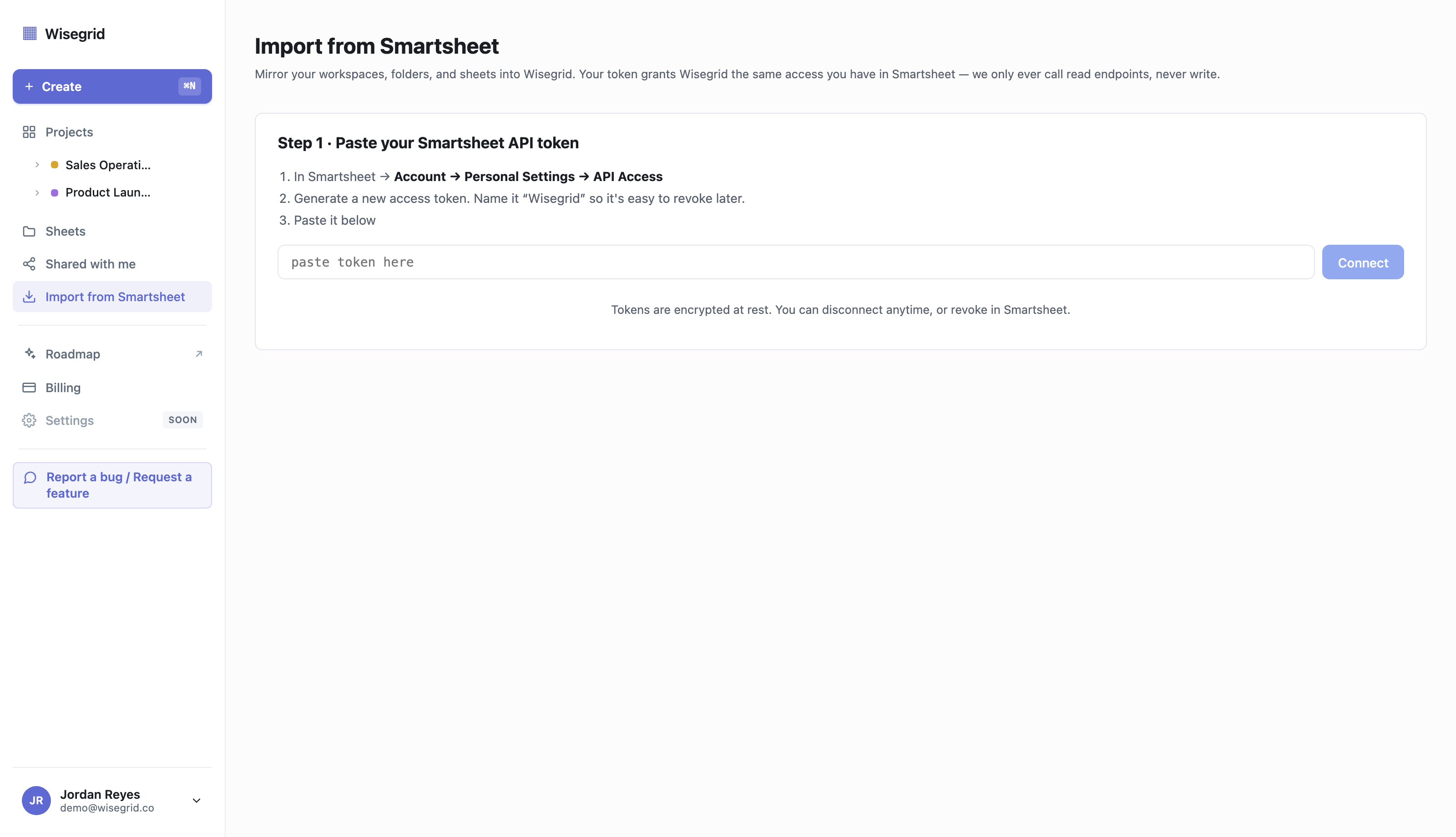
Where we’re honest about the limits. The importer does not migrate comments / discussions today — it handles sheets, rows, columns, cells, translated formulas, attachments, hierarchy, and cross-sheet references. Reports, Dashboards, Forms, and Automations also aren’t imported yet; they show up in the discovery tree with a “notify me” option so you always know what’s still on Smartsheet rather than discovering a gap later. (Ironically, comments are the one thing Smartsheet’s own Excel export keeps — so if comment history is critical, an Excel export is a reasonable side-archive to keep alongside an import.)
If you want the full step-by-step, the guide to migrating off Smartsheet walks through the whole process, from generating the token to clearing the review queue.
Export vs. import, side by side
| Export to Excel | Import to Wisegrid | |
|---|---|---|
| Formulas | Frozen to values; rebuild by hand | Translated; only the unconvertible few need review |
| Attachments | Not included | Mirrored to your storage |
| Column types | Flattened to text | Preserved as values |
| Hierarchy / groupings | Dropped | Preserved |
| Cross-sheet refs | Broken | Re-resolved |
| Gantt | Flat task list | Rows + dependencies into a built-in Gantt view |
| Comments | Kept (separate tabs) | Not imported (yet) |
| End state | A static snapshot | A live, working copy |
So is export ever the right tool?
Yes — for what it’s actually for. Export is a fine choice when you want a point-in-time snapshot: a CSV for an analyst, a values-only file for a finance report, a quick share with someone who only needs the numbers, or a comment-history archive (since that’s the one thing it keeps). Smartsheet’s export does that job correctly.
What it is not is a migration or a true backup of a working sheet. The moment your goal is “keep this sheet alive somewhere else,” export’s losses — formulas, attachments, column types, Gantt — turn a one-click action into days of rebuilding. For that goal, importing directly is the path that doesn’t make you pay twice.
See exactly what carries over — start a migration →
FAQ
Does Smartsheet export keep formulas?
No. Smartsheet’s documentation states formulas “aren’t preserved due to the differences between Excel and Smartsheet formula syntax.” (help.smartsheet.com/articles/770623) You get the computed values, not the formulas — so the exported sheet stops recalculating. A direct import (such as Wisegrid’s) translates the formulas instead.
Do Smartsheet exports include attachments?
No. Smartsheet lists “Groupings, Summary rows, Attachments” among items “excluded from exports.” (help.smartsheet.com/articles/770623) Files attached to rows are not part of the export and would have to be re-downloaded and re-attached manually.
Does Smartsheet export keep comments?
Yes — this is the part most guides get wrong. Comments and sheet summaries are exported to separate tabs in the Excel/Google Sheets file. (help.smartsheet.com/articles/770623) They’re detached from their rows, but they are not lost. (Note: Wisegrid’s importer does not yet migrate comments — so for now, an Excel export is the better way to archive comment history specifically.)
What happens to dropdowns and RYG/symbol columns on export?
They flatten to plain text. Excel doesn’t support Smartsheet’s dropdown, contact, checkbox, or symbol column types, so per Smartsheet “Only text values are exported.” (help.smartsheet.com/articles/770623) The values survive; the column types — and everything they drove, like conditional formatting and automations — don’t.
Can I export a Smartsheet Gantt chart to Excel?
You can export the underlying data, but not the chart. Smartsheet states “Exporting a Gantt chart to Excel exports only the task list it’s based on.” (help.smartsheet.com/articles/770623) The timeline, dependency bars, and critical path don’t come through.
Is export a good way to back up a Smartsheet sheet?
For a point-in-time snapshot of values (and comments), yes. As a backup of a working sheet, no — because the formulas, attachments, column types, and Gantt structure don’t survive, you couldn’t restore the sheet as a functioning system from the export alone. If your goal is to keep the sheet alive elsewhere, importing directly preserves far more. See how to migrate off Smartsheet.
How do I move off Smartsheet without losing all of this?
Use a direct import rather than an Excel export. Wisegrid connects to Smartsheet with a read-only token and mirrors your sheets, rows, formulas (translated), attachments, hierarchy, and cross-sheet references — surfacing anything it can’t convert in a review queue instead of dropping it silently. You can start a migration here.
Don’t export to a dead file — import to a live one
Paste a read-only Smartsheet token and watch your workspace mirror over — formulas translated, attachments and hierarchy intact, cross-sheet references re-resolved — at the same price you already pay.
Start your migration → · How to migrate off Smartsheet → · Smartsheet formula translation guide →
About the author Ryan Kramer is the founder of Wisegrid, a higher-capacity Smartsheet alternative built around a 1,000,000-cell-per-sheet grid, conflict-safe collaboration, and a one-click Smartsheet importer. He built Wisegrid out of first-hand experience hitting the walls in Smartsheet’s grid, pricing model, and capacity limits, and writes about leaving Smartsheet without losing your data. More from Ryan →